Archive for the ‘Technology’ Category

h1

Apple Music, the mystery unravelled

November 22, 2024

I’ve used Apple devices for years, decades even. And I’ve been a MacBook user for more than a decade, but when I switched from using iTunes on a PC to iTunes, and then Apple Music, on a Mac, and I acquired an Apple Music subscription, I couldn’t work out what was going on.

I think I’ve now worked it out. But it’s taken a while. So I thought I’d write down what I’ve learned, although you may all already know this!

In the old days

In the days of iTunes on both Mac and Windows, you could rip your music CDs onto your PC, and then you selected which of your albums, songs or playlists you wanted to sync with your iPhone. You plugged your phone into a USB port, hit “Sync” and off it went. Depending on the amount of music you had in your library, and the speed of your computer, it could take minutes, or it could take hours. And it was all physically copied to your phone.

What happened?

More than 10 years ago I switched my main computer from a Windows laptop to a MacBook. For a while it continued to work the same way, so I synchronised a selection of music from my MacBook to my iPhone by plugging it in. But then I subscribed to Apple Music and suddenly I had the ability to sync my music to the music Cloud.

Foolishly I clicked “sync library” on both my Mac and my iPhone. That’s when the trouble started. I ended up with duplicate copies of some albums on my iPhone. And some duplicates on my MacBook too. I couldn’t work out what was going on, so I just disabled sync and lived with it. For some time. For several years actually. I kept saying to myself, “I really have to sit down and work out how this works.” But I never did.

And now?

Well I recently replaced my aging Intel MacBook Pro with an M2 MacBook Air. Brilliant little machine. I’ve done a lot of travelling in the last year. And I was becoming increasingly annoyed that whatever music I wanted to listen to on the plane wasn’t on my phone. Or only a couple of tracks of one album was. Or I had two copies of it. So I resolved to sort it out.

The setup

I now have a MacBook Air, an iPhone (SE3) and an old iPad Air 2 I recently inherited from my wife. My iPhone has 256GB storage and could hold my entire (about 100GB) music collection, but what I listen to when I’m travelling and offline is limited, so I don’t need all of it. The iPad has only 32GB of storage, and I really only use that to play music when I’m at home and online, where it’s paired with an Alexa Echo Dot that plays through my hifi. And it has nowhere near enough storage to download my entire music collection.

What I hadn’t realised

Assuming you have an Apple Music subscription, the ideal setup is for your entire music library to be stored on your Mac (or your Windows PC). Then it expects you to sync this with the Library in the Cloud.

You could split your physical library across multiple devices and sync them in both directions. But I’m a bear of very little brain, so that’s too confusing. I’d rather it was all physically stored in one place. I also strongly recommend backing this up – I’ve done this to both Apple Time Machine and Microsoft OneDrive – it’s very easy to hit the wrong button and delete a track, an album or an entire Library. It’s good to have somewhere you can get it back from without having to re-import from your CD collection.

Cloud music is separate from your iCloud data storage, and can hold up to 100,000 tracks. Then you can (should) clear all the music you’ve transferred to your phone using a USB cable, and sync Apple Music to your phone with your Cloud Music account.

Then you can see your entire Music Library and you can choose what to download and store on your device for offline playing. Well sometimes you can choose, but sometimes it just downloads stuff for you without you asking for it. But only on the iPhone, the iPad appears to be different.

What I did

First, I had to sort the mess that was my Apple Music on my Mac. That’s because I’d actually got two physical music collections, one on each device. And because I’d hit “sync library” on both devices, I’d got copies going both ways, and therefore duplicates on both devices. The iPad, being a recent acquisition, had no music on it at all. A good place to start.

I turned Library sync off on my phone. No point making the situation worse. I decided to have all the music physically stored on my Mac, and to sync it from there to my other devices.

So I held down the Option key while opening Apple Music on my Mac. That allowed me to either switch libraries or to create a new one.

I created a new library, and then synced it with the Cloud. A whole lot of stuff came down, which I selected and deleted from the library. I did this a couple of times until the Library was empty. Then I copied my entire music collection (from backup) into the Music folder and used Apple Music to import it all. (File|Import – select the Music folder – Open). It took a while. I left it overnight.

When it had finished, I opened Music on my iPad and had a look at the Library. Most of the music was showing, but (thankfully) none had actually downloaded. You can see the status of each track in the Library – if it’s in bold type it’s available in the music library, and provided you’re online at the time you can hit play and it’ll play that track. If it’s grey then it’s not available in the music library and you can’t play it. If you play the album it’ll skip those tracks.

And if it’s in bold with a little down arrow in a grey circle next to it, it’s been downloaded and is available to play on your device even when you’re offline.

For reasons that still escape me, about 15% of the tracks I’d imported into Apple Music on my Mac hadn’t synced with the iCloud library, and therefore weren’t available on the iPad.

When you look at the music on your Mac, there’s no obvious way to fix this. There’s no option to force a track, or an album, to resync with the cloud. Furthermore there’s no way to see, on the Mac, which tracks have synced with the cloud and which haven’t, as they all show as being physically on the machine – because they are. This is the physical location of the music tracks.

So you have to look at your iPad (or Phone, but the phone behaves differently, as I’ll discuss later) to see which tracks haven’t synced.

So I set up my iPad next to my Mac, Apple Music open on both, and when I open the same album on each device you can see, on the iPad, which tracks haven’t been synced with the cloud. What you then have to do is delete each of these tracks from the Mac Library, and remove the files.

Fortunately they are not completely deleted, they are moved to the bin. So I opened two side-by-side Finder windows, one with the Music folder and one with the Bin. Starting with an empty Bin (very important) I could then see the deleted tracks, and drag them back into the folder from which they’ve just been deleted. Then back in Music select File | Import and either Command + click each of the tracks I’ve just replaced, or select the album, and click “Open”. This imports the tracks into the Library again, and forces a re-sync with the cloud. You can monitor progress on the iPad because when you delete the tracks from the Library on the Mac, after a few moments they disappear from the Library list on the iPad. Then when you re-import them they first show in pale grey, with a cloud and arrow icon alongside. And then a few minutes later they show up in bold, so they’re now synced with the library.

But not every time. Occasionally one or more fail to sync even this time, and I had to repeat the entire procedure.

Now sometimes an entire album failed to sync with the cloud. Don’t just delete the album from the library, because if you do, although the tracks will all be moved to the Bin, the containing folders (the Album and the Artist folders) aren’t moved to the Bin and disappear. You can recreate them, but that’s a lot of mucking about and typing, and they have to be exactly the same as the ones that were deleted or Apple Music complains. I found the easier way was to go into the Finder window, copy the album folder (which copies its contents), if there were other albums by the same artist, or copy the artist folder if there was only one album, and paste it to another folder on the computer – I used my Downloads folder.

Then you can delete the entire album from Music. Then I went back to Finder and dragged and dropped the copied folder back to its original location. Then I could re-import it into Music.

It was taking an inordinately long time to do this with each of nearly 1,000 albums. Every time I found one that didn’t need to be re-synced it felt like a victory.

However, there is an easier way. There’s an option, in Music, to re-sync the entire library. File | Library | Update Cloud Library. This does the entire library again. But it also takes hours. And it also occasionally fails. So I still had to go through every album on the iPad to ensure all the tracks were there.

There were other glitches. Most irritating of all was the failure to use the same artwork on the iPad as on the Mac for each album. It turned out that generally Music on the iPad uses the artwork associated with the first track in each album. So if that track is missing and the artwork for the next track is different (which can often happen if you’ve used “Download Album Artwork” in Music in the first place) then it’ll get the wrong artwork. I found I had to open the artwork on the Mac, copy the image to the desktop (Cmd+Shift+4) then open the album, select all the tracks at the same time, right-click and select “Get Info” and use “Add Artwork” to paste the copied artwork back to every track in the album. That usually worked. I still have a couple of albums on my iPad with the wrong artwork, and I can’t work out how to fix them. Life’s too short.

What about the iPhone?

Well, that was even more complicated.

I’d disabled Library Sync on my iPhone, and then deleted all the contents, so the iPhone Library was empty. My mistake was to turn Sync back on before I’d sorted the Cloud library using my iPad.

It turned out that every track that I’d deleted, replaced and re-imported manually got automatically downloaded onto my iPhone. But only those. So when I’d finished sorting out and syncing the Library from my Mac onto my iPad I now had an apparently random selection of some tracks that were downloaded to my iPhone, but very few whole albums. This didn’t happen with the iPad. Bizarre. My advice if you’re grappling with this is to disable syncing on any devices other than the one you’re using to identify missing tracks, and then only when you’ve completely restored the library, re-enable syncing on that device. After, of course, deleting and removing any music that’s stored on that device.

When I gave up and used the nuclear “Update Cloud Library” menu option on the Mac, those tracks that were re-synced with the Cloud didn’t download to the iPhone.

So my final task was to go through each album on my iPhone to decide which I wanted stored locally, and to either remove the downloads or download the rest of the album.

Downloading the rest of the album is easy. From the Library/Albums view, open an album. If it shows a tick in a circle at the top it’s already fully downloaded. If it shows instead a down-arrow in a circle then it isn’t, but clicking it downloads the rest of the album, and you’re sorted.

Getting rid of the downloaded tracks you don’t want is harder. To see which these are, instead of Library / Albums, you go to Downloaded/Albums and then click each album to see if it’s all there or not. If it’s not all there you can only remove the downloaded tracks individually. You click the … at the right-hand side of each track and select the “Remove” option, helpfully highlighted in red. Then you’ll be given the option to either remove the download (yes) or remove from Library (No! Don’t do that. It’ll delete this track from every copy of the Library, including the master version on your Mac or PC, and you’ll either have to re-rip it, or restore it from that very handy backup you made right at the beginning…)

But if you click the … at the top of the album you will only get the “Remove” option if the entire album is already downloaded. From here you can’t download it, and the only delete option is to remove the entire album from the Library (as I’ve already said, that could be catastrophic).

I discovered it’s easier to leave “Downloads”, go back to “Library” and then to remove the local copy of albums you don’t want downloaded, you have to download the entire album, and then you can use the Remove option to Remove the Download. Perverse isn’t it.

Is it sorted now?

Yes. Finally, after several hours of work, and even more hours of letting it do its own thing, I have all 966 albums stored on my Mac, synchronised with the Cloud library, available to play from my iPad and some of them selectively downloaded to my iPhone.

In theory I could now remove the downloads from my Mac and simply rely on the copies I’ve synced with the Cloud Music. But I used to work in the storage industry, where there is a saying that, “If you don’t have at least three copies of something, it doesn’t exist.” And also I couldn’t play it offlline if the only place everything existed was in the Cloud. I’m a strong proponent of cloud storage. But I also want a physical copy locally both for backup and because internet access isn’t ubiquitous. Yet.

What happens if I cancel my subscription to Apple Music? I have no idea, but at least I have a hard copy and two backup copies of my original music library, so if necessary I can start again!

h1

Yet more about broadband

June 13, 2022

As you may have seen from my recently updated post about Full Fibre broadband, I’ve terminated the Full Fibre contract and dropped back to my 80Mb/s Fibre to the Cabinet (FTTC) ADSL. This has been provided by Sky Broadband for many years – in fact I’ve been a Sky customer since they acquired UK Online to deliver their broadband service.

However it’s got very expensive. My contract expired in May 2022, and Sky emailed me to say that I would now be charged £38 a month! I called them to see what, if anything, they could do. The best they could do was a £5 discount to £33 a month. Disappointing.

So I hunted around. By far the cheapest was Vodafone, which, with a discount because I have a Vodafone mobile contract, offered 80Mb/s FTTC for £21 a month. Attractive but I passed on this for two reasons. First is that Vodafone wouldn’t let me keep my existing landline number, and the second is that I was unable to speak to anyone about this. I tried calling their customer service number, but all I got was a recorded message telling me they couldn’t answer my call and to use web chat on their website.

But Vodafone’s webchat wasn’t working – I just got a message telling me to phone customer service. So Vodafone was binned.

Next was NOW Broadband. NOW Broadband is part of NOW TV, as subsidiary of Sky which offers television services in the UK over the internet using a WiFi smart stick (or, if you still have one, a set-top box). They offered 80Mb/s FTTC ADSL for £23 a month including a year’s free landline calls. And I could retain my landline number. I signed up online, paid the £5 delivery fee for the NOW Broadband router, and picked a switch-over date.

As it happened, we were away on the switch-over date, so I delayed the router delivery until we were back. I was expecting no internet on our return, but much to my surprise it was all working. When I opened the box containing the NOW Broadband router I realised why… the NOW Broadband router was identical to my existing Sky Broadband router in every respect except for the moulded logo on the case. I’ve left the NOW router in the box.

On examining my router logs it’s clear that the Sky service disconnected about 4am on switch-over day, and NOW Broadband reconnected, using the same router, about 20 minutes later. Given that NOW is a subsidiary of Sky, what I’ve managed to do is to connect to the same network, using the same equipment, at the same speed, for £15 a month less than I was paying Sky.

Result!

Footnote:

I had a little glitch as the landline wasn’t showing Caller ID, which it should. I called NOW Broadband and spoke to a very pleasant lady who reset the line, which fixed the problem. I mentioned that I was still using the Sky router. She encouraged me to do so for as long as possible. She explained that although they look the same, the Sky version of the router uses better components which makes it more reliable, and that I should just keep the NOW router as a backup, just in case!

h1

“Full Fibre” Broadband – six month trial

November 11, 2021

Updated 19th November following a visit from a Swish engineer.

Further updated June 2022 after I cancelled the contract.

As I mentioned in a previous post, Swish Fibre has been digging up the pavements and verges in my neighbourhood recently, with the promise of “full fibre” broadband with speeds of up to 1Gb/s. “Full fibre” is marketing speak for fibre to the premises (FTTP), meaning high speed fibre-optic cable all the way to your house.

Note: What most ISP’s call “Fibre” is actually fibre to the cabinet (FTTC) which is then carried as ADSL over copper – your normal telephone wire – to your house. Don’t fall into the trap of thinking that because what you have is called “Fibre” that you actually have a fibre connection to your home.

The Swish offering is simple, either 400Mb/s broadband for £45/month or 900Mb/s for £75/month on a rolling one-month contract. If you subscribe for 12 consecutive months Swish will increase your speed to either 500Mb/s or 1Gb/s. This is a symmetric service: upload speeds are the same (similar anyway) as download speeds. This is not usually the case with domestic broadband, indeed the “A” in ADSL stands for “Asymmetric” meaning faster download than upload.

I registered my interest as soon as I was aware of the project, and was recently offered free installation and six months’ free subscription which I thought I’d take up. I was told that many people are trying the 900Mb/s service free, dropping back to 400Mb/s at the end of the free period. I didn’t see the point in this, as I didn’t want to get used to the fastest service and then be disappointed when it dropped back. I also can’t imagine what you’d need 900Mb/s broadband for; so for my free trial I’ve opted for the 400Mb/s service.

What am I comparing it with?

I currently have Sky Superfast Fibre Broadband, which is fibre to the cabinet (FTTC) at the end of my street and then carried over my telephone line. I can usually get 70-80Mb/s down and 18-20Mb/s up. Over my home network, which is a combination of Powerline adapters (yes, I did upgrade them) and Wi-Fi access points, I can achieve around 60Mb/s download, wired or wireless. This, including telephone line rental – necessary for ADSL, costs £32/month, but that’s a special deal, the full cost when that offer expires will be £37/month, so not a lot less than Swish, but Swish doesn’t require, or include a phone line. We hardly use our landline any more, it simply carries the broadband, so I’d probably get rid of the landline if I were to switch to Swish permanently.

First impressions

Installation

This was relatively straightforward, but took about four weeks from placing my order to having working broadband. I recently had an underground cable duct installed to carry my phone line as part of a bigger relandscaping of my front garden, so getting the fibre connection from the Toby box in the pavement (sorry, can’t work out why they’re called that) to my house was trivial.

Toby Box

The way fibre is installed is that the engineers have to connect a small duct from the Omnipoint (where the external fibre connects to the internal fibre) on the outside of your premises, all the way to the fibre distribution point somewhere up the street. Once this duct is connected they blow the fibre filament along the duct. Yes, blow it, with air from a large fan/blower device, the vortex in the pipe carries the fibre filament along. In my case the fibre distribution point was something approaching 200 metres away. However about 75 metres from the distribution point it all stopped. Apparently the infrastructure team which had been tasked with connecting all the intermediate ducts together had missed one, and the fibre could get no further.

A week later the infrastructure team returned to remedy their omission, and about 90 minutes after that another installation team arrived to finish my installation. This went smoothly and within an hour of their arrival I had live full-fibre broadband.

Communication

Could be better. Swish is good at selling but the installation/scheduling team isn’t so good at customer communications. I was told I’d be contacted about a site survey. I wasn’t. Now under the impression nothing had happened I threatened to cancel the whole contract within the period I’m legally allowed to change my mind. Within minutes of this threat a scheduler called me to say they’d done the survey, that mine was a completely standard installation, so installation would be free, and could they install it the following week?

Note: most people don’t have a cable duct, and Swish has been positioning the Toby Box in a location where they expect to dig a trench to the house – unlike conventional copper cable, fibre isn’t self-supporting so it is rarely run overhead unless it has a supporting cable. Digging trenches or running overhead cables will probably be chargeable in addition to the standard installation charge.

After the first installation team hit the “break in the duct” problem they said I’d hear from the scheduler about finishing the installation. I heard nothing, despite emailing her. About a week later a Swish van appeared at the end of my drive to resolve the issue. Only once that had been resolved did anyone contact me regarding reattempting my installation.

Once I’d initially posted this blog I got a lot of communication. Swish certainly monitor social media. I had a call from a senior technician regarding my speed issues and offering to lend me some other equipment. Then I got a call the following day from a scheduler asking if an engineer could call later that day! Well done Swish.

Equipment

The installation requires three bits of kit:

  • An “Omnipoint” on the outside of my house which is where the external fibre meets the internal fibre cable. This is black and about 12cm x 5cm. This is connected by a fine black fibre-optic cable through a hole in the wall of my house to the…
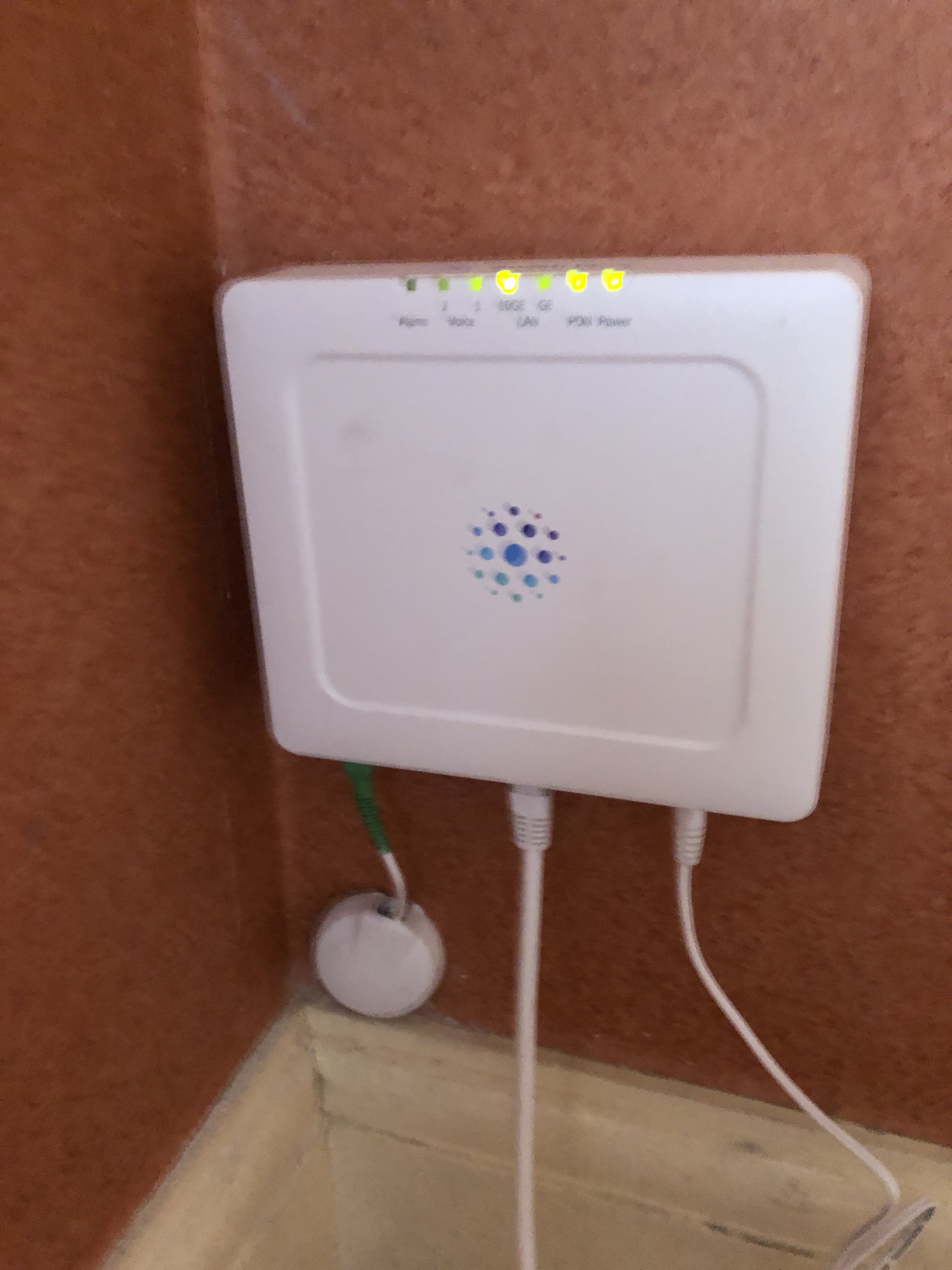
  • Optical Network Termination point (ONT), a white box on the internal wall. This is about 15cm x 10cm x 3cm and is the point where fibre is converted to ethernet.
  • And finally a router (or RG – residential gateway) which has a 4-port switch and a built-in dual-band wireless access point.
ONT box

The ONT and the router each require a power supply, so you need two mains sockets nearby.

The installation team was very happy to install the ONT wherever I wanted it, which in my case was my study, from where I run all the tech in the house. The router can be placed anywhere provided it’s directly connected to the ONT with a Cat6 ethernet cable.

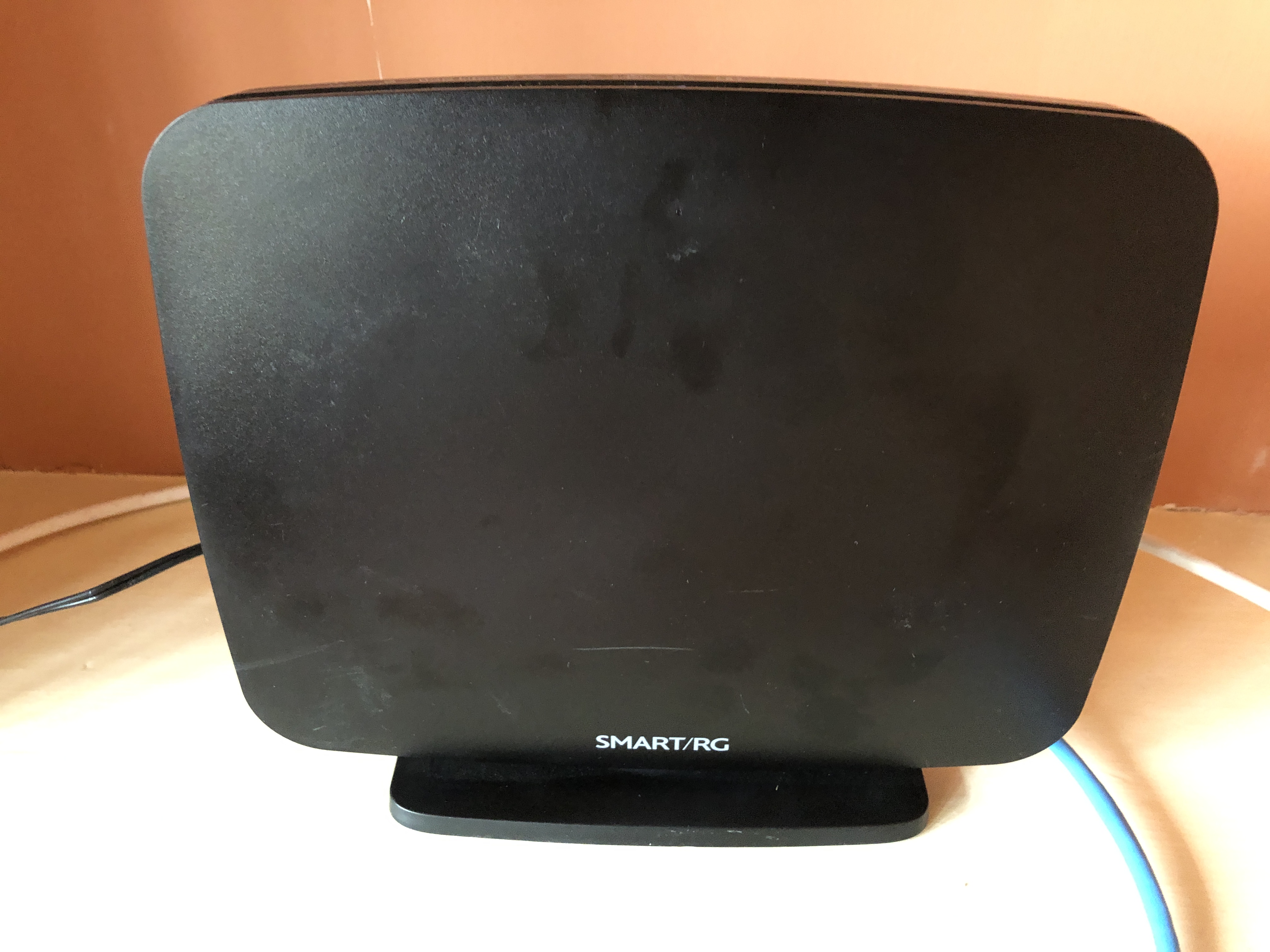
Swish Smart/RG router/ Residential Gateway

Performance

Initially disappointing, but that’s largely been resolved. See the update below.

Running a broadband speed checker, even with only a single device connected by cable to the router, I achieve barely 100Mb/s most of the time. I have managed to get it up to 400Mb/s but only very briefly while downloading a large video file from BBC iPlayer. If the broadband had been running at 400Mb/s continuously then this file should have taken around a minute to download; it took several minutes.

I tried again with a video file from Channel 4. The maximum speed achieved during this download was 80Mb/s, which is exactly what I get with Sky Fibre broadband.

Most of the time, obviously, the broadband is running at a low speed, which is all it needs to deliver the content I normally demand, but I did expect it to leap up to use the maximum available bandwidth when required. But it doesn’t. Maybe BBC and Channel 4 can’t deliver content at that speed?

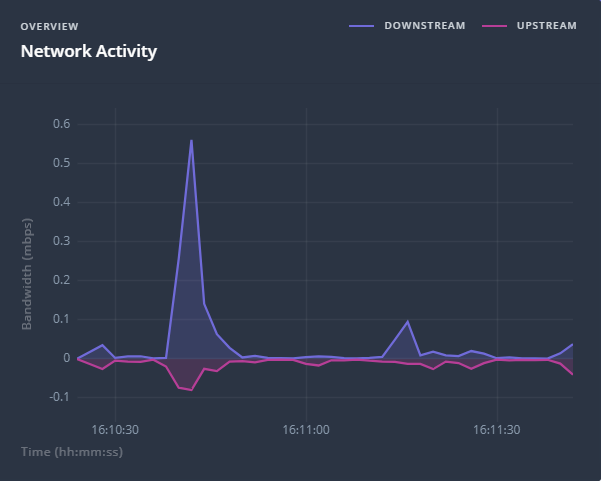
Network activity while writing this blog post. Peaks at 0.55Mb/s

This means my Powerline and WiFi adapters are not stretched at all. Even with a speed checker I can’t get either of them much over 60Mb/s, and they did that with Sky broadband too.

Yes, they are capable of more. The Powerline adapters are rated at 2000Mb/s, which generally means they’ll achieve around 400Mb/s in the real world, and one of the WiFi adapters is capable of 1300Mb/s.

Even the WiFi access point built into the Swish Smart/RG router can’t deliver more than 120Mb/s on a speed test when I’m sitting next to it. And its range is poor compared to either the Sky router or my Apple Airport Express. It must be noted that the Airport Express has a 100Mb/s ethernet port, so it couldn’t handle the full speed of this connection even if Swish were able to deliver it.

Update 19th November – a visit from a Swish engineer

After initially posting this blog, I was contacted by Swish who said they would like to help resolve the issues I encountered. An engineer arrived to look at my installation today. He swapped the Smart RG router out for a “Plume Pod“, which they tell me is their default choice of router for customers who don’t have their own wireless network/mesh/access points. This is a massive improvement. My wired network is currently getting 400Mb/s everywhere – here’s the test I just ran on my Mac:

The engineer installed two further Plume Pods to replace my WiFi access points with a mesh. In initial use (I’ve been using the new system for a couple of hours) this works well, although the Pods have to be quite close together to build a viable wireless mesh. We tried ethernet cabling to a distant second pod, but it simply wouldn’t connect over the cables I’d installed in the house. The Plume Pods appear incredibly sensitive to the category of ethernet cable and refuse to connect over anything other than full Cat6 cables over any more than a few metres. Cat5E works for short cable runs (in our tests 10 metres or less) but Cat5 is just a no-no. The Plume Pods won’t drop back to a lower speed, it’s gigabit ethernet or nothing. This is only to connect them together. If I connect a Plume Pod to a gigabit switch and then run a Cat 5E cable from that to any devices other than another Pod, it works fine – indeed the speed test I’ve posted above was conducted with my MacBook Pro connected over just such a cable, and I managed to achieve 400Mb/s to my Mac over a long Cat 5 cable. We connected the Plume Pods wirelessly in the end, but because of the separation this required a third, intermediate, Pod. I will be re-cabling with Cat6 very shortly.

I can also now get 400Mb/s wireless speeds! Close to a Pod both my Mac and my iPhone achieve very close to 400Mb/s. My PC is a different issue but we suspect that’s a WiFi drivers or a hardware problem which I’m investigating, however I can wire it and get 400Mb/s. Even my wireless NOW TV Smart sticks are getting between 42 and 68 Mb/s – and they’re hiding behind TVs which doesn’t do anything to improve a wireless connection.

If you subscribe to Swish and get a Plume Pod as a router then that first one is provided free of charge. Any further Plume Pods are chargeable at £90 each (I’ve been lent these for now). To cover my house properly would require a fourth Pod, but for the moment I’m sticking with Powerline adapters to get to the furthest corner. Rated at 2Gb/s the Powerline adapters are currently delivering around 160Mb/s – a bit disappointing but I think this due to the electrical wiring in my house.

After letting the network settle down – apparently it takes a few days to configure itself to the normal network usage – I’ll try some more speed tests. Following that I might try reverting to a single Plume Pod and my original WiFi access points and see what speeds I get with those.

Further updates to follow.

Observations

Things I’ve noticed during this exercise which may help you if you’re looking to install broadband that’s faster than 100Mb/s.

  • Ethernet cables make a huge difference. Replace all your Cat5 cables with either Cat5e or Cat6. For long runs use Cat6.
  • Even if an ethernet cable says Cat5e on it, it may not work at more than 100Mb/s. Test it. Connect it to a gigabit device and to your computer. Both Macs and PCs will show you the speed of connection of a network cable. If it doesn’t show it’s connected at 1000Mb/s then replace it.
  • Speed testing software varies hugely. Don’t believe the first speed you get. Most speed checkers are browser based. To get a more reliable indication, find one that allows you to download an app to run locally. To give you an idea, I ran two speed tests one after the other. The first was the Ookla Mac app, this gave a download speed of 396Mb/s and an upload of 401Mb/s. I then ran the Which? Broadband Speed test app which is browser-based. Same Mac, same cable, moments later, this gives download of 104.5Mb/s and an upload of 359.9Mb/s. Which is right?
  • Make sure all your network infrastructure – computers, WiFi access points, switches, Powerline adapters, ethernet cables, smart TVs and set top boxes, are capable of gigabit speeds.

Final Update: June 2022 – Contract cancelled

So my six month free trial came to an end, and I terminated the contract. To be honest if I were still working from home, or if I had a house full of teenagers, I’d have kept it and paid £45 a month. But there are only two of us and FTTC delivers me a full 80Mb/s download and 20Mb/s upload, which is all we need, and I can get that for around £23 a month, so I really can’t justify the extra £22 a month to retain Swish broadband.

One other observation. Two of my three Plume Pods had failed by the time I handed all the kit back to Swish. This meant I ended up reconnecting two of my WiFi access points. The guy who collected all the Swish kit said they’re prone to overheating and Swish is hoping to have some better and more reliable technology available for its customers soon.

Salvation is potentially on the horizon though. Another fibre broadband provider, Hey! Broadband (yes, that’s the company name) has announced their service is available in our area, and as well as a similar offer to Swish at 400 Mb/s, they offer lower speeds – so I could get 100Mb/s for £23 a month, which is much more appropriate…

h1

Some musings on Powerline adapters

July 12, 2021

I’ve been using a set of Powerline adapters in my home for several years. I’ve also recommended Powerline to several of my friends and family to solve networking problems in their homes. But they’re not a panacea for all ills. There are some idiosyncrasies which I discuss here. I hope this proves useful to someone.

Note: I’m writing from a UK perspective. While not a qualified electrician, I’m familiar with UK domestic power wiring (240V). I also have a passing acquaintance with European (Portuguese and Danish, 220V) and US (110V) domestic wiring.

What is Powerline?

Powerline (also known as Homeplug) is a technology that uses the mains power cables in your home to carry computer network signals to deliver a network – usually your broadband connection – to places in your home that are otherwise hard to reach. The signals are carried by a high-frequency radio signal over the copper electrical cables in the wall. It’s a technology designed only for domestic networks. It’s not intended for commercial use.

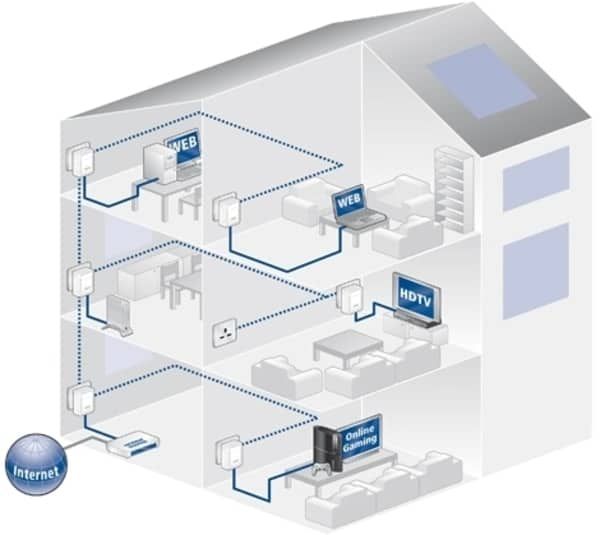
You plug an Ethernet cable from your router, or a point on your existing network, into one Powerline adapter which is plugged into an electric wall power socket. Then you plug a second adapter into a power socket somewhere else in your home and run an Ethernet cable from it to your remote device, which could be a computer, a wireless access point, a TV or a switch to which you connect other computing devices.

Example of the use of Powerline in a home

What types of Powerline adapters are there?

There are different versions for different power systems including US power plugs, UK power plugs, European (Schuko) power plugs and Australian power plugs.

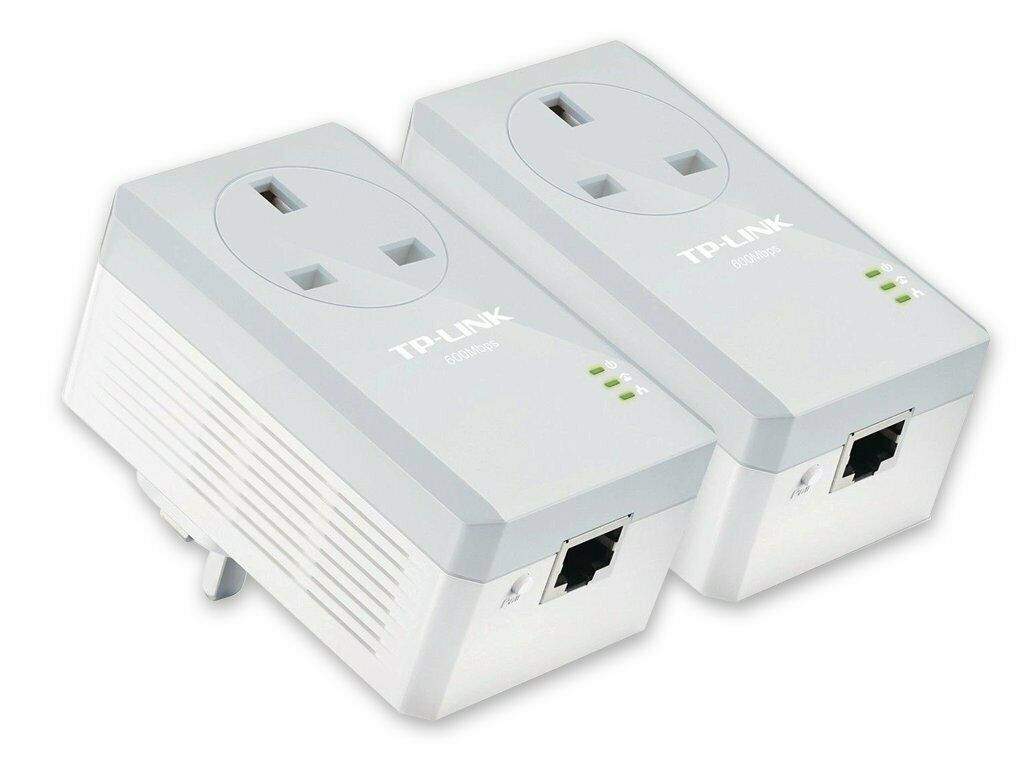
There are versions that occupy a power socket, and there are versions which present a power socket when they’re plugged in; these are known as “pass through” adapters.

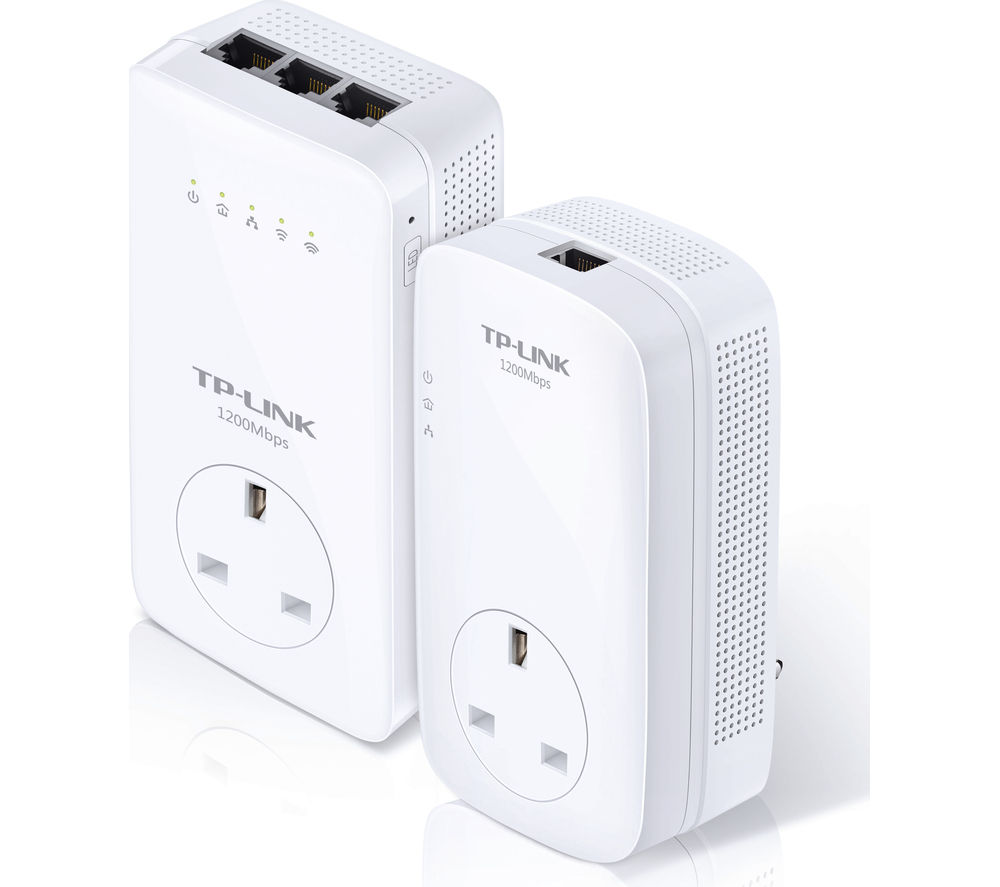
A pair of Powerline pass through adapters (UK version)

And there are different speed adapters. The lowest speed, the original versions, were labelled 200 Megabits per second (Mbps). There are 400Mbps, 500Mbps, 600Mbps, 1000Mbps, 1200Mbps and 2000Mbps versions. But in real life I’ve been unable to achieve anything near the claimed maximum speed, so I’d suggest you use a higher speed version than the network you’re trying to connect. I’m using 2000Mbps adapters to carry a 74Mbps network; my neighbour is using much less expensive 600Mbps adapters to carry a 12Mbps network.

Update: I’ve (possibly temporarily) upgraded my broadband to 400Mbps. This has allowed me to do some further testing of my 2000Mbps Powerline adapters. When they’re plugged into adjoining sockets I can get a full 400Mbps through them, unsurprising perhaps. As I move the second adapter to more and more distant sockets the speed drops. Downstairs it drops to around 200Mbps, and at the farthest point (on this ring main) it drops to 160Mbps. Then I wondered why the PC in that room was getting only 96Mbps… I swapped the ethernet cable for another, also marked Cat5e, and magically the speed increased to 160Mbps. So the rated speed of the Powerline adapter, the quality of the electrical wiring, the distance and the quality of the ethernet cable used for connections all make a difference to the actual speed you can achieve.

There are many Powerline manufacturers. In principle, adapters should all inter-operate, but the whole network may drop back to the speed of the slowest adapter, and each manufacturer has slightly different ways of setting up and configuring devices, so it’s generally easiest to use a set of adapters of the same speed all from the same manufacturer if you can. I’ve deployed TP-Link devices and I’m very happy with the build quality, reliability, operation, configuration and performance.

Some adapters offer more than one Ethernet port, so you can use them as a mini switch, connecting more than one device. Some adapters have a WiFi access point built in, so you can instantly set up a new WiFi network without any other devices, or you can use Powerline adapters to extend an existing WiFi network.

This pair of adapters shows one that combines both multiple Ethernet ports and a wireless access point

Decide how you want to use Powerline in your home and then select appropriate devices.

Will Powerline work on any home electric circuit?

To get the best performance you should plug the Powerline adapters directly into a wall socket – extension cables and particularly surge protection devices will attenuate the signal or even filter it out altogether.

Furthermore, it’s recommended that adapters are plugged into the same electrical circuit. Some houses have a separate circuit (ring main in the UK) upstairs from the one downstairs, and some houses which have been extended may have a separate circuit in the new build from the original building. Almost all houses have a separate circuit for sockets in the kitchen.

This doesn’t mean they won’t work across circuits, but they may not. Much seems to depend on how the circuits are protected. Older fused circuits appear to allow Powerline adapters to work across circuits; mini circuit breakers (MCBs) also seem to work, but residual current devices (RCDs) are more problematic. You may need to borrow a pair of adapters from a friend and try them, or make sure you can return the Powerline adapters to your supplier if they don’t work in your home.

Will Powerline work across phases?

In the UK, almost all domestic properties are supplied with single-phase power, but in other countries three-phase is more usual. Powerline adapters aren’t designed to work across phases, so if you’re trying to use them in a three-phase installation you may need to try and rearrange the circuits so the sockets you are trying to connect are both on the same phase. Consult an electrician.

You may be able to use an additional pair of Powerline adapters to bridge phases – I discuss this in more detail later. If you’re in the USA you may be more likely to get them to work across phases – that’s because you are very likely to have a 3-phase 110V installation and a high-power device that bridges two or even three phases. This may allow the Powerline signals to pass. There’s no hard and fast rule about whether they’ll work or not. You’ll just have to try it.

Are there any problems using Powerline?

Because the signal is carried on domestic wiring by high-frequency radio it may interfere with other devices – radio hams have reported Powerline causing interference with their radio equipment Also Powerline itself can be affected by interference from other devices plugged into the power network – I’ve seen reports that microwave ovens cause interference to the Powerline network when they’re operating.

Is my Powerline network secure?

All Powerline adapters are secured with a private key. They are configured by default with a standard key, so out of the box all adapters should work together, even those from different manufacturers.

It’s unlikely that your signal will pass your electric meter. It is also unlikely to pass onto another electrical phase, so it’s very unlikely that your neighbour will be able to connect to your network. But if you live in an apartment block, or in a shared house, then it may be advisable to change the encryption on your network to avoid possible eavesdropping.

All Powerline adapters support this. You can force one of your adapters to generate a new, random, private key and then pair the others with it. Consult your user’s manual on how to do this as each manufacturer, and even different models, may do it differently.

Can I use more than two adapters?

Yes, you can. If you’re using the default configuration you can simply plug in another adapter. If you’ve changed the encryption you will need to pair the new adapter with one of the existing adapters. Again, consult your user manual(s) on how to do that.

My experience is that adding a third and a fourth adapter worked fine, but more than that degraded performance significantly. I currently use three on my home network. They are all on the same electrical circuit, and with broadband speed at the router of 74Mbps I can achieve a 70Mbps connection at each of the remote adapters.

If I can’t get them to work well across electrical circuits, can I bridge them?

You can, but I’ve tried it in my home and my experience suggests that the performance may still be significantly reduced.

You will need to find a socket on one circuit that’s physically close to a socket on the other circuit, plug a Powerline adapter into each of these, and connect them together with an Ethernet cable.

However, to avoid creating a network loop, which will cause problems, you must arrange that the adapters on one circuit are unable to communicate with those on the other circuit via the electric cabling. To do this pair one set of adapters with a new private key (see above and refer to your user manual). You’ll end up with two adapters on one circuit using default encryption, and two adapters on the other circuit, paired together using a new random private key. Then you connect an adapter on one circuit by Ethernet cable to an adapter on the other circuit, creating a bridge.

I believe it is possible to use a specialist connector to bridge circuits at the fuse box/consumer unit, but I’ve only seen devices that do this for 110V US circuits. I’ve not found a UK 240V or a European 220V version.

Is Powerline better than wireless networking?

This depends on the situation, but in many situations, in my opinion, yes. My networking mantra is, “If you can wire it, wire it”. Connecting networks with physical cables is more reliable, more secure, and usually more performant than wireless.

But if you have multiple electrical circuits and have problems getting Powerline to work effectively then short of running an Ethernet cable round your house – which can be messy and expensive – wireless may be the better solution.

I use both. I prefer Powerline, but I have a room which is on an electrical circuit which won’t work reliably with Powerline from my router no matter how it’s connected. So I’ve installed a wireless repeater to get a decent bandwidth signal to the smart TV in that room.

h1

To fibre, or not to fibre, that is the question

March 19, 2021

OK, I’ll come clean. I already have fibre broadband. That’s FTTC (Fibre to the Cabinet). Then the connection from the cabinet on the corner of my street to my house is copper wire multiplexed over my phone landline.

My ISP (Sky) offers a maximum speed of 80Mbps (mega BITS per second), and when I test it with a computer hard-wired to the router I get all of that.

But there’s a chap with a digger making a hole in the pavement outside my house.

He’s a contractor working for Swish Fibre, which is installing an entirely different sort of fibre broadband. This is FTTP (Fibre to the Premises). This means fibre all the way to my house with a potential maximum speed of 1Gbps. I could get the basic 400Mbps version, 5x faster than my current broadband, for not much more a month than I’m currently paying Sky.

Fibre to the premises…


There are, however, some questions which I’m pondering.

Do I still need a landline?

My existing Sky broadband includes an analogue phone line. Of course it does, because it’s the copper wire that connects me to the phone network which also carries the broadband signal from the cabinet to my home. Do I still need a landline? Probably not. I was getting approximately 20 times more scam calls than genuine ones, although Sky Talk Shield has done a brilliant job of stopping those. I think we currently get no more than three landline phone calls a week.

Could I get those people to call our mobiles instead? Yes, I could, and that would solve the problem of the scam calls.

Can I use the extra bandwidth?

At the moment I’m using PowerLine adapters, rated at 500Mbps – which IRL actually means 50-65Mbps. This is OK, it’s almost the full broadband bandwidth. But what’s the point of increasing my broadband connection to 400Mbps if I’m throttling it to 50Mbps internally?

So I’m now debating, do I lash out £200 on some 2000Mbps Powerline adapters which might get much closer to 400Mbps, but I won’t know until I install them? Or do I embark on chasing plaster and drilling walls and installing an internal Cat6 Ethernet network to actually make use of the higher bandwidth?

Do I need this at all?

Or do I admit that, now I’m largely retired, 50Mbps is plenty, and I just stick with FTTC from Sky? In which case I might lash out on some new PowerLine adapters just to get the full 80Mbps over my existing network. Now that seems like an easy way to improve my broadband speed without getting building dust everywhere…

h1

Protect your email with a strong, unique password

April 24, 2020

Some of my friends have asked me recently about computer security, passwords, scams and malware. One thought he had a virus infection on his computer, another had been reposting hoaxes about WhatsApp messages while yet another had received one of these “we’ve got all your details, we’ve videoed you with your own webcam doing embarrassing things; if you don’t pay us money we’ll send the footage to all your contacts” emails. The reason he was particularly concerned was the email included one of his own passwords.

Of course it was a scam; it turned out the scammers had probably got his email and password from the LinkedIn security breach. So I confirmed with him that this wasn’t his email password and then reassured him it was a scam. He changed his email password just to be on the safe side.

Keep your email secure

Before anything like this happens to you, the most important piece of advice I would offer is: make sure your email password is UNIQUE (i.e. you’ve not used it for any other account, anywhere else, ever) and strong (8 or more characters and a mix of at least uppercase letters, lowercase letters and numbers). If it’s not, then I suggest you change it as soon as you can.

Computer with chains and a lock

It’s unwise to use your children’s names and dates of birth. Don’t use “password” “qwerty” or “1234567890” (which are some of the most commonly used passwords).

Why your email?

Because email is the way you reset every other password. If someone hacks into your email account they can change that password, then access every other account you have by going to the website and clicking the “I’ve forgotten my password” link. The site then emails them a reset link. Worse, they could log into your email and automatically forward your emails to themselves, so you don’t know anything’s wrong, but they receive a copy of any email sent to you.

So your email password is, perhaps after your bank, the most important password you use. And it doesn’t require your email provider to be hacked. If a major website is compromised (recent security breaches in the UK include Tesco.com and Carphone Warehouse) the first thing the hackers will do is try each password on the email account associated with it… and if you’ve used the same password for both, then the hackers have access to your email.

How to make a password strong but memorable

My preferred technique is to pick the title of a favourite book, album or song and use that as the key. Let’s consider, for example:

All I Want for Christmas is You by Mariah Carey.

(I don’t use this, nor should you, it’s just an example)

Take the initial letters capitalised as in a normal sentence:

AIwfCiy

Substitute some of the letters. For example you could change the “C” of Christmas to X for Xmas, “for” to 4 and “you” to u:

AIw4Xiu

It’s still too short, so add the initials of the artist – MC:

AIw4XiuMC

There you have a pretty strong, apparently random, 9-character password, but because you know the passphrase, you can remember it every time. No one will guess it, nor will it fall to a brute-force “dictionary” attack where hackers try every word in the dictionary.

Some sites require your password to include a special character, if that’s the case you can insert a %, & or @ between the song and the artist:

AIw4Xiu%MC

There you go, the almost perfect password.

Could I make it even more secure?

Yes, you could use what’s known as “Two Factor Authentication” or 2FA. Your online bank already uses this so you’re probably familiar with the concept. When you login you need to provide a second password, or a code texted to your phone. Maybe your bank’s sent you a special authentication device such as the Barclays PINsentry below, or you use an “Authenticator” app which generates a one-time random code. There are several authentication apps. Microsoft includes one in Office 365 (now Microsoft 365)Google has one, and Authy is one of the independent ones.

Sites including PayPal, Twitter and Amazon support the use of Authentication apps for 2FA. Many sites offer a 2FA capability and it’s a good idea to enable it if it’s available.

Barclays PINsentry security device

Barclays PINsentry for two-factor authentication

How to remember all those passwords

Ideally every password you use should be strong and unique, but that’s hard, especially as our memories fade with age. Writing them down, while not a great idea, is better than using the same password everywhere. Use a little notebook and keep it somewhere safe at home – that’s far more secure than re-using passwords. Someone would have to break into your house to get it, and if they do that they’re much more likely to steal the telly! Whatever you do don’t write your passwords on a sticky note on your computer!

Better still, use a Password Manager such as LastPass (there’s a free version for web, PC, Mac, iPhone and Android†) or 1Password (small annual fee) which can securely store all your passwords, generate new unique random ones and fill them in on your phone or computer as you need them. They have extensions for your favourite browser, and you can also access them securely from anywhere when you’re away from home (unlike the notebook under your bed). With a Password Manager you don’t need to remember, or even know, any password other than the master password for the app. Whatever you do, make that strong, unique and don’t forget it!

Should I change my passwords regularly?

It’s fair to say that the IT security industry is divided on this. Provided your password remains strong and unique then there’s benefit in doing so, and some systems require you to do so periodically. The problem is that many of us have lots of accounts, and trying to think of multiple memorable, unique, strong passwords regularly is hard. So many people, when forced to change their password, just use the same set over and over again, or they use the same password but include a number in it and increment the number each time. So being forced to change your password regularly may actually reduce rather than improve your security. Use a Password Manager and you can change your password regularly – in fact some of them will do it for you automatically!

What happens if the Password Manager site is breached?

Yeah, it has happened. Password Managers are, like antivirus software, a prime target for hackers. But it wasn’t a problem because the way Password Managers work is your passwords are securely encrypted with your master password as a key before being stored in the (yet further encrypted) Password Manager database, and are only ever decrypted, as you need them, on the device you’re using. Even the Password Manager doesn’t know your Master Password. So if the Password Manager site is compromised, all the hackers are likely to get is a list of encrypted records, none of which are any use to them.

They must know my password, how else do I log in?

When you first set up your password, the site does something called salting and hashing. Salting adds a string of characters (which may be very long and is usually unique to your user account) to your password before it’s hashed – a type of strong one-way encryption*. The resulting string can’t be reversed, so it’s impossible to work out your password from the salted & hashed string.

All this processing is done on your computer before the result is stored, so your password is never transmitted over the Internet. When you log in, your computer repeats the process and transmits the result which is compared with the stored version. If they match, you’ve entered the correct password and you’re allowed in. If they don’t, you’ve got it wrong. But at no point is your password known to, or stored by the system.

Even if a hacker managed to get hold of your unique salt and the hashing algorithms (as some are reported to have done in the LastPass breach) they’d still wouldn’t have your Master Password, so they’d have to guess it and try salting & hashing it to gain access to your passwords – which is why its still important to make sure your Master Password is strong and unique.

Clever eh? This salting and hashing system is used by many major Internet sites, not just Password Managers. It’s preferred because it doesn’t require the storage of any passwords in clear and it avoids transmitting passwords in clear over the internet. I suspect Tesco and Carphone Warehouse are using it now. If they’re not, they should be.

So keep your passwords, especially your email password, unique and strong, and use a Password Manager, then you can just ignore those scammers!

* For the purists, yes I know it’s not the same as encryption, but this isn’t the place to go into the details of the difference between encryption and hashing.

Update: As of March 17th 2021, LastPass Free is available only on EITHER computer (PC, Mac and Laptop) OR on mobile (phone, tablet and watch) but not both. In order to get it on both you have to upgrade to one of the paid plans such as Premium, Families or Teams. Still good value IMHO.

Further update: in August 2022 LastPass suffered a major security breach. The company has been less than transparent about it, but it turns out that every level of security – other than each user’s master password, had been breached. Those with a secure, and long, master password are probably ok, but others may be subject to a “brute force” attack. I have switched to 1Password, and have changed all of the passwords for any critical sites. It’s taken all day, but I’m happy I’m largely secure. I can no longer, in all honesty, recommend LastPass.

h1

Football on UK TV at 3pm? Never!

February 15, 2020

It seems perverse to me that in today’s technology and media landscape, with multi-billion pound fees paid for the rights to broadcast live football (soccer, for my transatlantic readers), it’s impossible to watch a live football match on a Saturday at 3pm in the UK unless you’re actually there in the ground, or have privileged access to a TV studio.

Why is there no live football on TV on Saturday afternoons?

The reason is that in the 1960s then Burnley FC chairman Bob Lord convinced other Football League clubs that if live football were available on TV at 3pm on a Saturday – the kick-off time of most football matches at that time – then their fans would stay at home and watch a higher league team on the telly rather than go to the live game. So a law was enacted that prevented the broadcast of any live match between 2:45 and 5:15 on a Saturday. This law is still in place and still observed, even for games being played outside the UK. Pubs in the UK are also unable to stream live matches between those times.

What’s the impact?

This is the reason so many matches are played on Sunday, Monday nights, Tuesday nights, Friday nights and why one Premier League match each Saturday kicks off at 12:30 (currently broadcast live on BT Sport) and another after the blackout at 5:30 (live on Sky Sports).

It’s also the reason that both the BBC and Sky have prime-time TV slots on a Saturday afternoon broadcasting a studio of football pundits all actually watching the live streams of the matches and then recounting to us mortals, who aren’t allowed to see the live action, what’s going on.

BBC football pundits on Final Score

I believe the one thing it does achieve is a substantial audience for the BBC’s Premier League highlights show, Match of the Day, and to a lesser extent the English Football League (EFL) highlights show currently on Quest.

Could it be fixed?

Of course it could. A simple change of the law to repeal this ludicrous rule would enable broadcasters to carry live football on a Saturday afternoon. Would it do what Bob Lord originally suggested and massively reduce attendance at lower league clubs? I don’t believe so, after all when lower league clubs get their matches broadcast live as part of FA Cup coverage, people still go to the games.

Perhaps we could try it as an experiment and revert if Bob Lord’s apocalyptic prediction comes true? But we’ll never know if we don’t try, because this has never been allowed in the UK – the home of football.

Perverse or what?

h1

A new type of telephone scam

November 12, 2018

My landline phone rang showing the number 0345 203040 (which I found out afterwards is Halifax’s customer service number). The lady on the phone with a strong Scottish accent said her name was Angela and that she was calling from Visa about some suspicious transactions on my bank Visa Debit card.

Would I confirm they were mine, and then they’d release them for payment? I asked how I knew she was from Visa. She said she wouldn’t ask me for any account details but didn’t give me any further verification.

She said one transaction was for £400 with Argos, and the other was £700 with Tesco. No, they weren’t mine. I wanted to find out which bank’s card this was (I have several with different banks). She wouldn’t tell me which bank, but asked me to list the banks. Which I did. She picked one and said it was that one.

She was very clever and credible. She knew my name and address. She asked what else I’d used that card for recently, if I’d put it into a cashpoint where it might have been compromised. (Possible but unlikely, I generally use it for contactless transactions). Did I actually have the card? Yes. Had it been damaged? No. What was the current balance? Hmm, I was dubious but I did tell her approximately.

Then she raised my suspicions further by saying she’d now like three pieces of security information, the first being my mobile phone number. I said I’d give her the last four digits, but she wanted the whole number. She said this was to demonstrate their security – she’d call my mobile and the number displayed would match the customer service number on the back of my debit card.

When I pointed out that it’s very easy to spoof any phone number you like on a phone call she hung up.

I presume if I’d been convinced by the phone number spoofing, she’d have gone on to ask for other details like my account number, sort code and so on.

I did call my bank afterwards who confirmed there were no such transactions, and that even in the event of a suspicious transaction on my card it would be them that contacted me, not Visa.

This is a new one on me – so watch out for Angela, or whatever name she uses next time!

h1

Black Friday – let’s leave it to the US

December 1, 2017

So it seems “Black Friday” has come and gone in the UK without it really stirring anything very much. The Daily Telegraph reports that Currys PC World in Oxford Street opened its doors especially early to let in the rampaging hoardes looking for a bargain – and there was one bloke outside who’d dropped by to pick up his pre-ordered laptop!

It’s no surprise to me. In fact I’m rather pleased that this particular US import isn’t getting much traction over here.

And nor should it.

Picture from The Sun of shoppers fighting over a flat-screen TV

The reason for “black Friday” is that this is how it was referred to by US retailers. The day in question is the Friday after Thanksgiving – which always falls on the last Thursday in November. For many of my American friends Thanksgiving, or “turkey day” as it’s colloquially known, is a much bigger family event than Christmas. The problem for US retailers was that after a day of scoffing Turkey and convivial drinking with their loved ones, most folks booked the Friday as vacation and slept in the next morning. So retailers didn’t sell very much on that particular Friday morning.

Hence it became known as “Black Friday”. Then some bright spark thought of the idea of having a discount sale, but one that ended at midday. So to get the great prices you had to get out of bed and go buy that TV, bike, carpet or whatever else, before lunchtime. I’ve been there on that day (in Boston, MA), and done it. And it’s quite fun, but a lot of people end up buying a lot of stuff they didn’t really want or need just because it was cheap, and the offer was time-limited.

That was it. And of course the UK doesn’t celebrate Thanksgiving, we didn’t have the dip in retail sales on that day, and “black Friday” meant nothing to us.

But the world’s moved on. We can now shop on the internet, so Americans can still sleep in and snap up those bargains without even getting out of bed. And, of course, anyone else in the world with an internet connection can shop from those US retailers. And, with US retailers owning UK chains (IIRC it was Asda, which is owned by WalMart, which originally introduced the concept of Black Friday to the UK some years ago) Black Friday has metamorphosed from a once-a-year, Friday-morning only sale in the USA, to a whole week of discount offers across half the globe.

I’m delighted to see that Marks & Spencer, Fat Face and several other major UK retailers are spurning the Black Friday farce – I believe they’re right when they say all it does is bring higher-price sales during December forward, and reduces the margin on them. It also encourages people to buy stuff they don’t really need. Time magazine suggests that in the US return rate of goods bought on Black Friday is significantly higher than for goods bought at other times of the year. It’s especially so for technology purchases. So the admin and restocking cost for the retailer is higher.

Please Britain, remember Thanksgiving isn’t something we celebrate, so let’s abandon this unnecessary US import.

h1

Whoops, no head-up display!

September 2, 2017

In an idle moment recently (I don’t get many of those at the moment) I was scrolling through Honest John’s car advice in the Daily Telegraph. I found this one:

This struck a chord with me, because I’ve just bought a pair of Polarised sunglasses to eliminate reflected glare from the inside of my car windscreen – which can be a major problem if the sun’s in front of me and shining directly onto the top of the dashboard.

So, some basic physics. When light is reflected off a surface, most of the light that’s vibrating parallel to the surface is reflected, while most of the light that’s vibrating at other angles is absorbed or diffused. This means the reflected light is mostly vibrating in one direction – this is what “polarised” light means. Reflections from the inside of a car windscreen will be horizontally polarised.

Polarised glasses are designed to eliminate horizontally polarised light because it’s horizontally polarised light which reflects from surfaces such as roads, puddles and lakes, tables and so on. That’s why I bought my new glasses – to eliminate the reflection from the inside of the windscreen when driving towards the sun.

Head-up displays work by projecting the display upwards so that it reflects off the inside of the windscreen – as shown above.

If you wear Polarised glasses, these will cut out any light reflected from the inside of the windscreen, however it got there, so you will not be able to see a head-up display. Reactolite glasses aren’t polarised, they just darken the lenses, so the display will still be visible.

Obvious really, Honest John!